
Let’s learn how to navigate a broker terminal, explore the various features it offers, learn the different types of orders available, how to fund your account, and finally how to buy & sell a stock.
For this tutorial, we will be using Zerodhas mobile app— Kite. We recommend you add some funds to your trading account and follow this tutorial so that you can gain first-hand experience with the brokers trading terminal.
Trading in the stock market can be overwhelming, especially when you’re trying to figure out what type of orders to use. At Zerodha, one of India’s leading discount brokers, there are several order types available through their trading platform Kite. I’ve been trading with Zerodha for years now, and let me tell ya – understanding these order types can make a HUGE difference in your trading journey!
The Main Order Types Available on Zerodha Kite
Zerodha Kite offers three primary order types that every trader should know:
1. Market Orders
A market order is basically your way of saying “I want to buy or sell this stock RIGHT NOW at whatever price is available.” It’s the fastest way to execute a trade because you’re not setting any price conditions.
How it works When you place a market order it gets executed at the best available price in the market at that moment.
Best used when You want immediate execution and are less concerned about the exact price
The downside: You might end up buying at a higher price or selling at a lower price than expected, especially in volatile markets.
2. Limit Orders
A limit order is when you set a specific price at which you want to buy or sell. Your broker (Zerodha) won’t go above (when buying) or below (when selling) the price you specify.
How it works
- For buying: “I want to buy this stock, but not for more than ₹500”
- For selling: “I want to sell this stock, but not for less than ₹500”
Best used when: You have a specific price in mind and are willing to wait for the market to reach that price.
The downside: Your order might never get executed if the market doesn’t reach your specified price.
3. Stop-Loss Orders
A stop-loss order is designed to limit your losses if the market moves against your position. On Zerodha, you can choose between two types:
a) SL Order (Stop-Loss Limit)
How it works: You set two prices – a trigger price and a limit price. When the market hits the trigger price, a limit order is placed at your specified limit price.
b) SL-M Order (Stop-Loss Market)
How it works: You set a trigger price. When the market hits this price, a market order is automatically placed, ensuring execution (though not necessarily at the exact trigger price).
Best used when: You want to protect yourself from significant losses or want to secure profits on existing positions.
Additional Order Types on Zerodha
Besides the main ones, Zerodha also offers:
1. Good Till Triggered (GTT)
GTT orders allow you to set conditions that stay active until they’re triggered or until you cancel them. These orders remain active even after market hours and can last for up to a year!
Example use case: You want to buy a stock when it drops to a certain price, but don’t want to constantly monitor the market.
2. After Market Orders (AMO)
AMOs let you place orders after trading hours, which will be executed when the market opens next.
How it works: You place your order after market close (typically after 3:30 PM), and it gets queued for execution when the market opens the next trading day.
Best used when: You’ve done your analysis after market hours and want to ensure your order is in the queue early for the next day.
Which Order Type Has the Best Execution Possibility?
If you’re concerned about getting your order filled, market orders have the highest chance of execution. They’re executed on a first-come-first-serve basis during market hours.
Some traders try to get ahead by placing orders in:
- Pre-market sessions
- As After Market Orders (AMOs)
But even these don’t guarantee execution – this limitation exists across all brokers, not just Zerodha.
Balancing Execution vs. Price Protection
Here’s the trade-off that every trader struggles with:
- Market orders give you better execution but risk unfavorable prices (especially in cases of “freak trades”)
- Limit orders give you price protection but might not get executed
Zerodha offers some smart workarounds:
- You can use a limit order like a market order by setting the limit price slightly away from the current market price
- Use a Stop-Loss limit (SL) order like a Stop-Loss Market (SL-M) order with similar price settings
These approaches combine the benefits of both order types – giving you some price protection while improving chances of execution.
My Personal Experience with Zerodha Order Types
When I started trading, I made the classic newbie mistake of always using market orders – and sometimes got burned by sudden price movements! Now I use a mix of all these order types depending on my strategy:
- For quick trades in liquid stocks: Market orders
- For stocks I want to accumulate at specific prices: Limit orders
- For protecting my positions: Stop-loss orders
- For my long-term strategy: GTT orders
I’ve found that combining these order types has really helped me manage risk better and execute trades more efficiently.
Tips for Choosing the Right Order Type
Based on my experience, here are some tips for choosing the right order type:
For Beginners:
- Start with limit orders to get used to specifying prices
- Use stop-loss orders from day one to protect your capital
- Avoid market orders until you understand market depth and liquidity
For Active Traders:
- Use market orders for highly liquid stocks during normal market conditions
- Use SL-M orders for quick exits when needed
- Consider AMOs to get in the queue early for anticipated market moves
For Investors:
- Use GTT orders for long-term accumulation strategies
- Consider limit orders slightly below market price for better entries
- Set stop-losses for even long-term positions to protect capital
Common Issues with Order Execution on Zerodha
Sometimes your orders might not behave as expected. Here are some common issues and solutions:
1. Orders Executed at Different Price Points
This typically happens with market orders or large orders that get filled in parts at different prices. The solution is to use limit orders when price precision matters.
2. Orders Not Getting Executed Despite Being Placed Successfully
This usually happens with limit orders when the market doesn’t reach your specified price. Consider modifying your limit price or switching to a market order if execution is more important than price.
3. Partial Executions
If only part of your order gets filled, it’s usually because there weren’t enough shares/contracts available at your specified price. Using market orders can help avoid this, but at the risk of price variation.
Advanced Features for Order Placement
Zerodha Kite also offers some advanced order features:
1. Basket Orders
Allow you to place multiple orders simultaneously across different stocks.
2. Disclosed Quantity
Lets you reveal only a portion of your total order quantity to the market.
These features can be especially useful for larger traders who need more sophisticated order management.
Final Thoughts
Understanding order types is crucial for successful trading. The right order type can mean the difference between a profitable trade and a missed opportunity (or worse, a bigger loss than necessary).
Zerodha’s Kite platform provides all the essential order types that traders need, with a clean interface that makes placing orders relatively straightforward. I’d recommend practicing with different order types in small quantities before scaling up your trading.
Remember, there’s no “best” order type – each has its purpose depending on your trading strategy, time horizon, and market conditions. The key is knowing when to use which!
Do you have any questions about specific order types on Zerodha? Drop them in the comments, and I’ll try to help based on my own experiences!
Need help with your Zerodha orders? If you’re facing issues with order execution or have questions about which order type to use, you can always create a support ticket directly through the Zerodha support portal.

Understanding the Broker’s Terminal
When you first log in to your account on Zerodha’s Kite app, you will be greeted with the watchlist tab by default. The app has five main tabs. The top left corner of the app displays the name of each tab.
Watchlist & Overview
The watchlist tab contains a list of securities to which you can add stocks and other financial instruments and monitor them for potential trading and investing opportunities. You can customize up to seven watchlists based on your needs. The dropdown arrow in the top left of this tab brings down the overview feature, which shows brief data on the prices of NIFTY50 & BankNifty and the funds in your account.
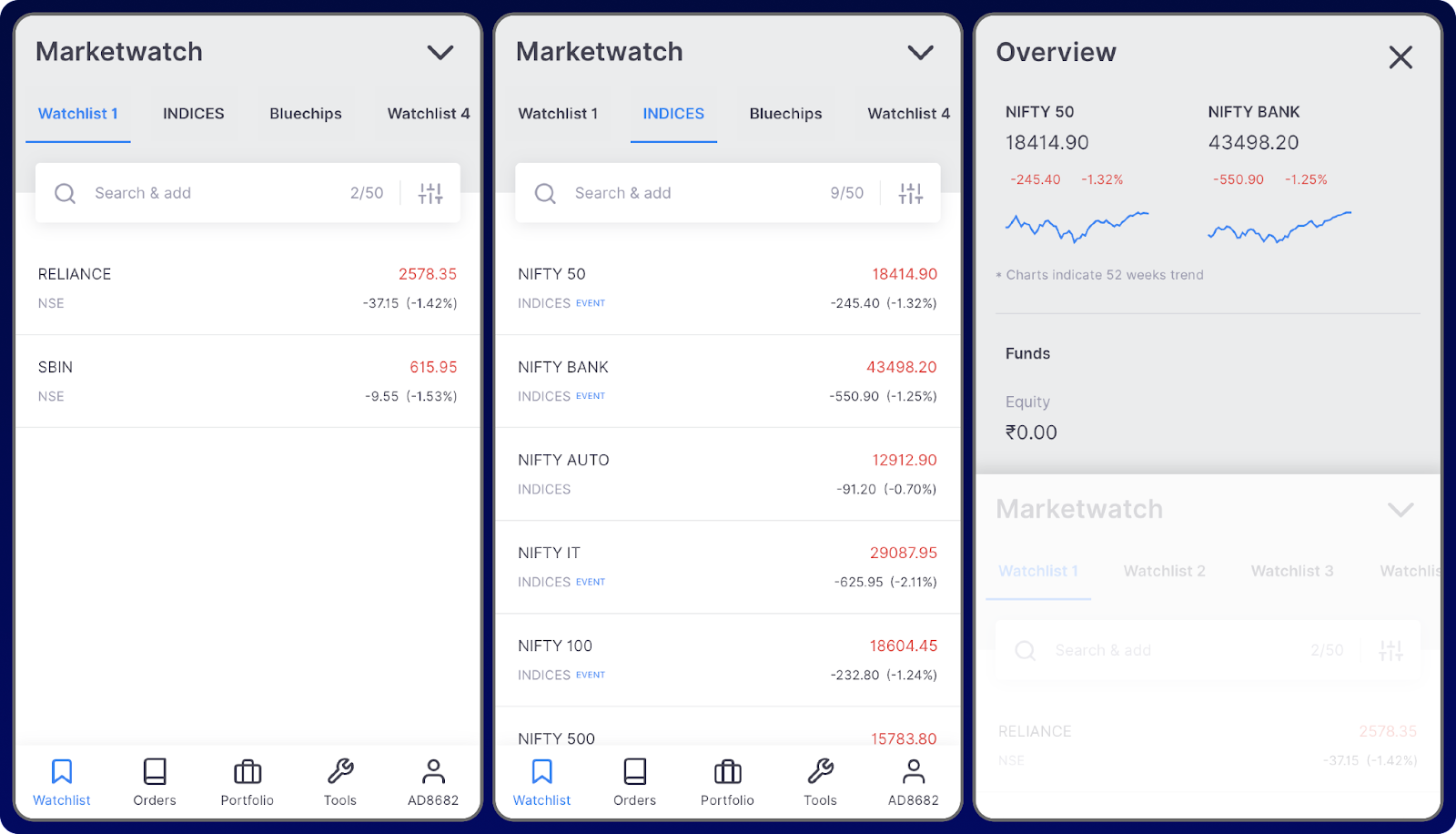
1. Select any watchlist from the tab 2. Click on search & add 3. Type the name of a stock. eg: Reliance 4. Click on the + icon parallel to the stock name 5. Click on < arrow on the top left 6. The watchlist will display the stock you selected
To add stocks to other watchlists, click on any of the watchlists from the top panel and repeat the steps. You can add up to 50 stocks to a watchlist.
1. Click and hold on the name of the watchlist you want to change
2. Click on the edit icon
3. Type the new name
4. Click on save, and your watchlist will be renamed
1. Click and hold on the watchlist name
2. Click on the delete icon parallel to the stock that you want to delete
3. Click on save
1. Click and hold on the name of the watchlist
2. Click on the dots to the left of the stock’s name, and drag up or down to change the order
3. Click on save
1. Click on the configure icon to the right of the search bar 2. Under the filter section, select or unselect NSE & BSE to filter your watchlist according to the stock exchange 3. Under the sort section, there are three parameters:
- A-Z Alphabetically – Sorts the watchlist in alphabetical order
- % Change – Sorts the watchlist on % change in price
- LTP – Sorts the watchlist in ascending or descending order of LTP
An order is an instruction given to the broker to buy or sell a stock. There are 4 subtabs in the orders tab:
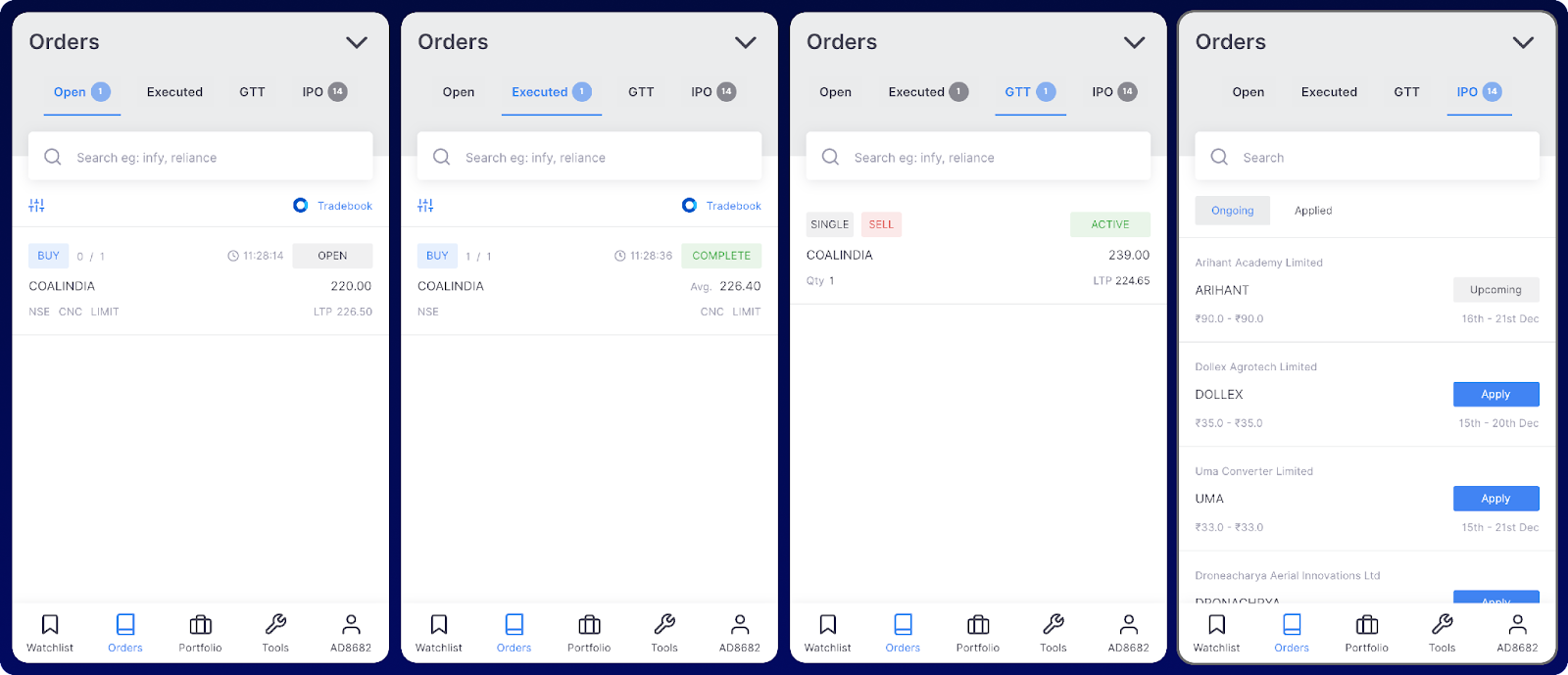
1. Open: When you place an order, it will be shown here until the order gets executed 2. Executed: Once the order is executed and the stock is bought, it will be shown in the executed tab. The details in open and executed tabs are only valid for a day and clear themselves on the next day.
3. GTT: GTT stands for Good Till Triggered. This tab shows all the GTT orders placed with the broker. We will learn about GTT in the coming sections.
4. IPO: This section contains details about ongoing IPOs and applied ones will be shown here.
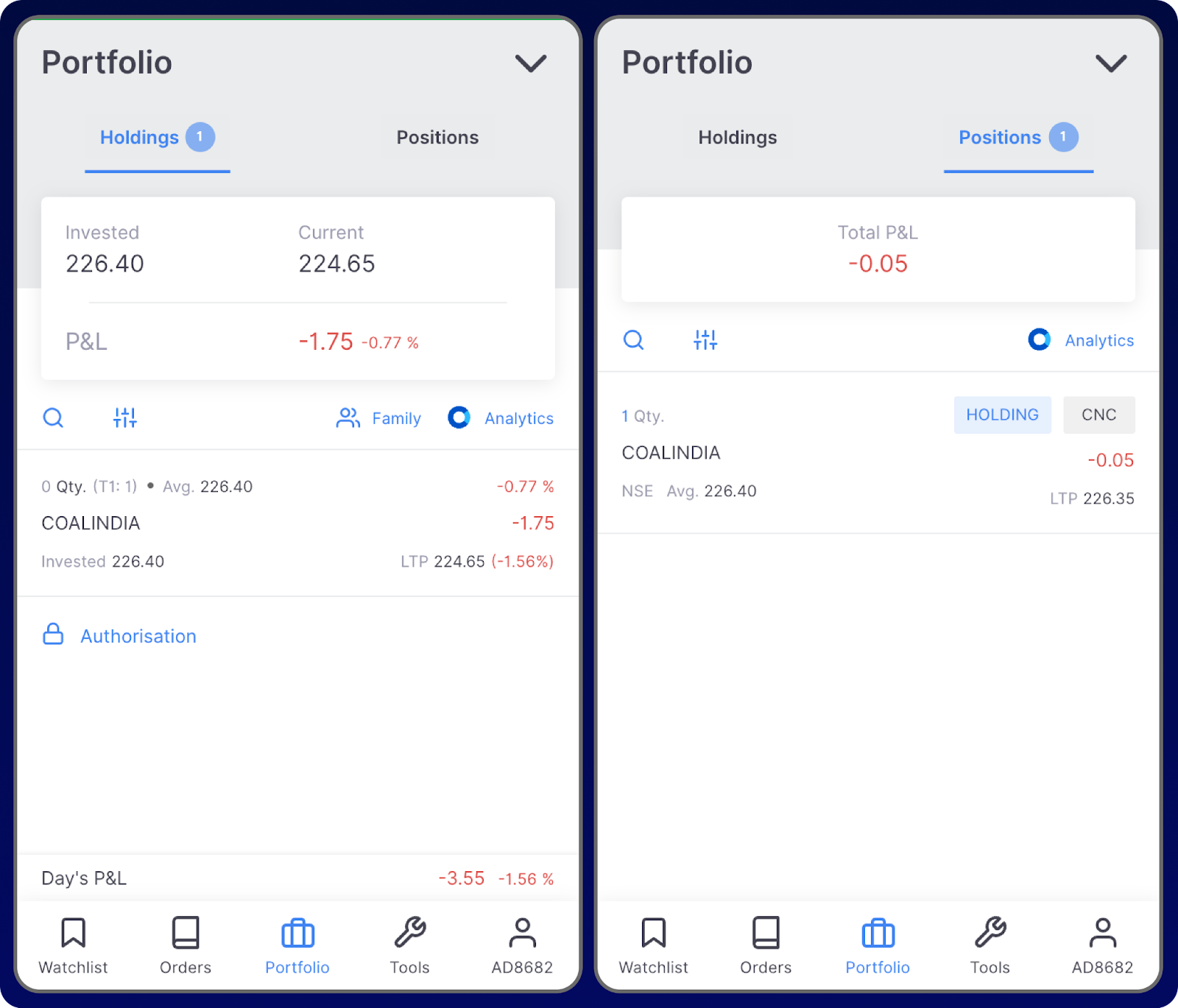
There are two subtabs in the portfolio tab:
1. Holdings
This tab displays all the stocks that are in your Demat account. The feature not only presents a summary of the holdings, including the invested amount, current value, and returns generated but also provides details about each individual stock holding.
- T1 mark near a stock means that it is a T1 holding. T1 will disappear the next day.
- Day’s P&L shows the changes in the profit or loss of the holdings on any given day.
2. Positions
This tab shows all the trades/investments that you took on that particular day.
When you buy a stock, it will be shown in the positions tab on that day and will be shown in the holdings tab the next day.
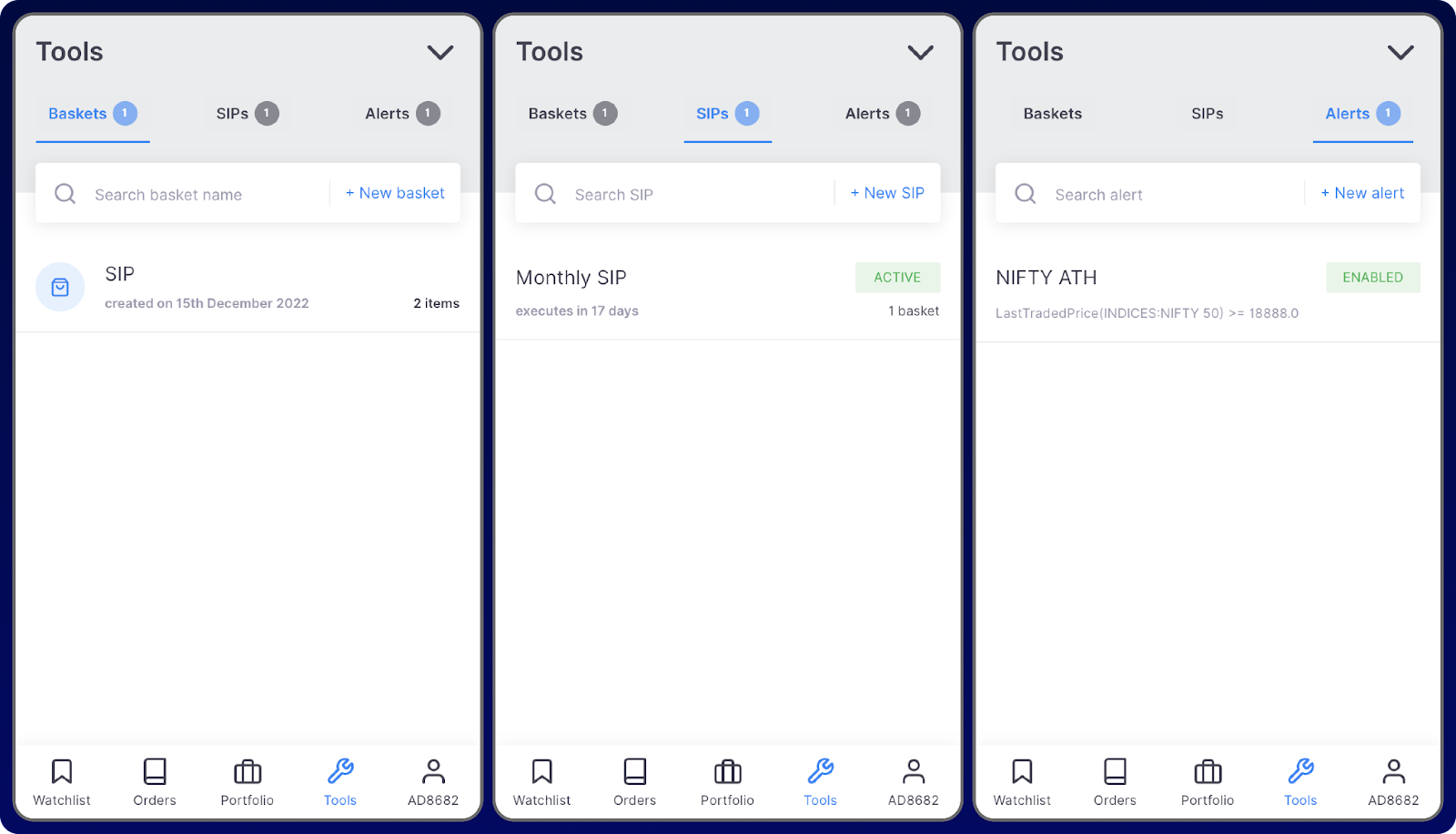
There are 3 subtabs in the tools tab:
1. Baskets
A basket is a feature that allows you to buy a group or portfolio of stocks rather than buying them individually.
2. SIPs
Systematic Investment Plans (SIPs) allow you to invest a certain amount of money into stocks and other securities at regular intervals. Once you create a basket, a SIP can be done on a particular basket.
3. Alerts
This feature allows you to create alerts on stock prices so that you don’t need to monitor them constantly.
This tab shows all the account settings and profile information:
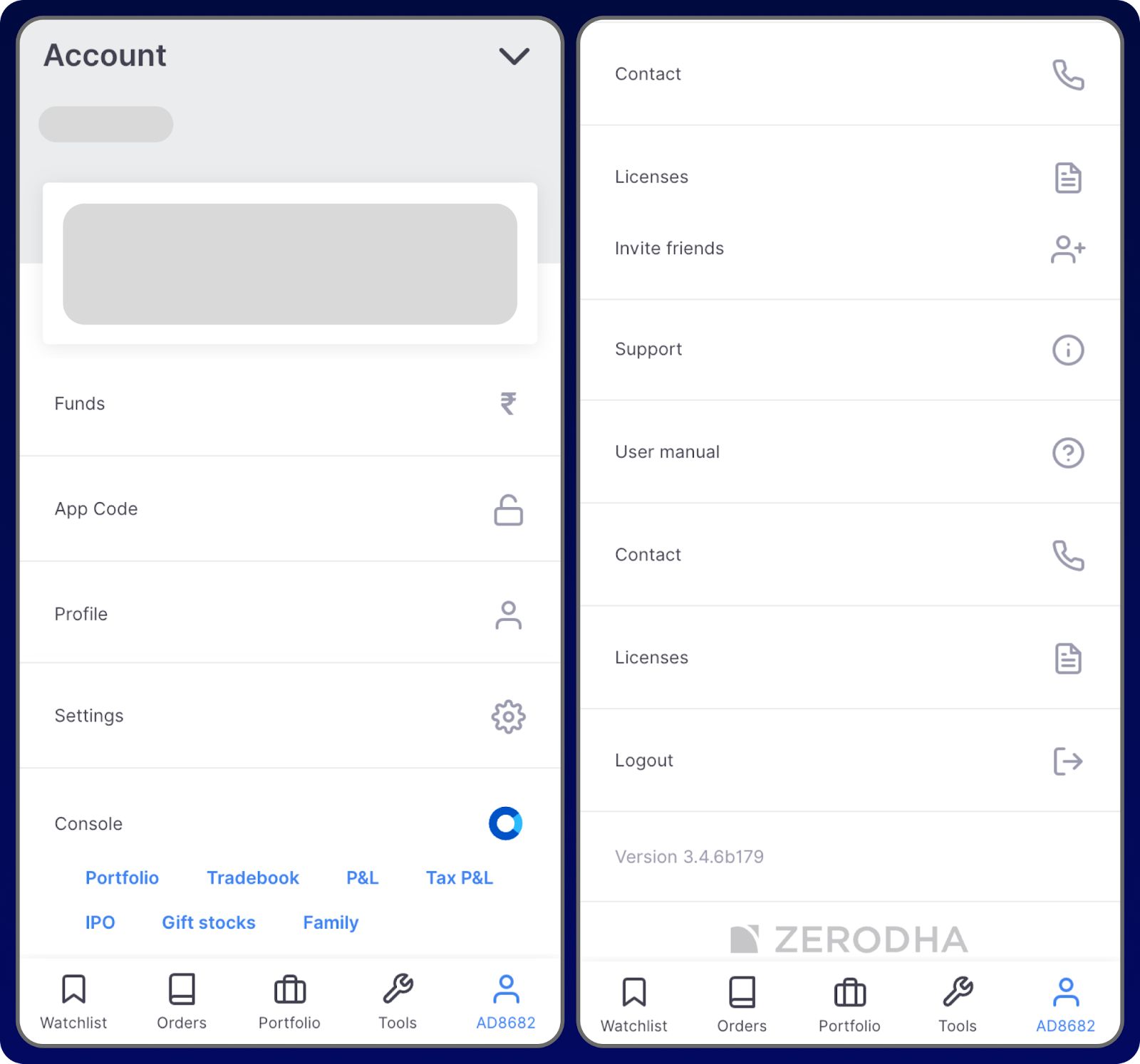
- Funds – This section is where you deposit and withdraw funds into your trading account.
- App Code – It displays the code to log in to Kite web.
- Profile – Shows all your profile information such as your name, client code, email, phone number, etc
- Settings – This option allows you to change various settings within the app.
- Console – Console is the back office of your Zerodha account.
- Portfolio option shows a detailed view and breakdown of your holdings.
- Tradebook shows all the trades you have taken on any particular day or range of days.
- P&L shows the total amount of money you gained or lost in a particular period.
- Tax P&L displays all the documents required to file tax returns with the Income Tax Department.
- IPO displays all the current and upcoming initial public offerings (IPOs). You can also apply for IPOs via Zerodha.
- Gift Stocks is a feature that allows you to gift stocks to other Zerodha users.
- Family allows you to add up to 10 family member portfolios (Zerodha accounts) and track the consolidated portfolio through one account. Only viewing and tracking are allowed after explicit authorization from the family members account.
Apart from these five tabs, there is an overview section in the app that displays two indices, NIFTY and BANKNIFTY, by default. It also shows the funds available in your account to trade. You can access the overview section from the dropdown pin on the top right corner of the screen and is accessible from any tab in the app.
9. Order Types
FAQ
What is type in Zerodha while buying stocks?
You choose a limit order type when you are keen on transacting at a particular price; else, you can opt for a market order. You choose CNC as a product type if you want to buy and hold the stock across multiple days. If you want to trade intraday, you choose NRML or MIS.
What is meant by order type?
An order type is an instruction to a broker or trading platform on how to buy or sell a security, specifying conditions like price, time, and execution method. Common order types include market orders, which execute immediately at the current price; limit orders, which specify a maximum price for a buy or a minimum price for a sell; and stop orders, which trigger a market order once a specified price is reached. The chosen order type determines when and how a trade is executed.
What does type limit mean in Zerodha?
Limit orders allow you to specify the exact price at which you want to trade. Buy limit order: If a stock’s Current Market Price (CMP) is ₹95 and you want to buy at ₹90, place a buy limit order at ₹90. Your order executes at ₹90 or lower.
Should my order type be limit or market?
Investors will place a market order when they want to execute a trade at the best available price the moment an order is sent. A limit order executes the trade at a specific price that the investor sets, and only once that price is met does the trade execute.